Effect
The Effect module provides GPU-accelerated design effects for professional compositing workflows.
Rounded Corners
Apply rounded corners to an image by modifying its alpha channel.
Example:
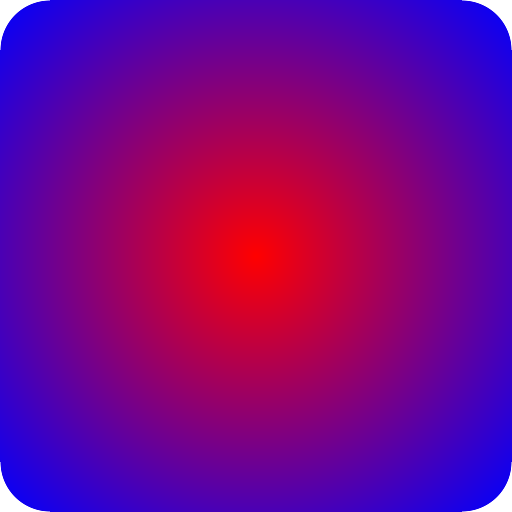
Parameters:
image(Image): Image to modify (in-place)radius(float): Corner radius in pixels
Returns: None (modifies image in-place)
Note: Maximum radius is automatically clamped to min(width, height) / 2.0 to prevent invalid values.
Drop Shadow
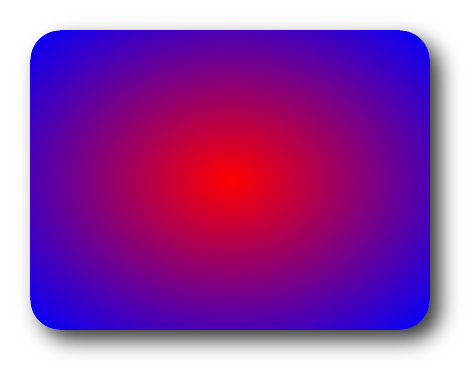
Create a drop shadow effect with blur and offset.
Example - Expand Mode (Default):
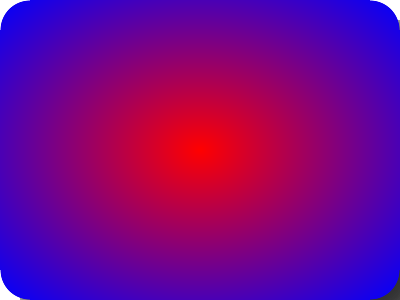
Example - No Expand Mode:
Parameters:
image(Image): Source imageoffset_x(int): Horizontal shadow offset in pixels (default: 10)offset_y(int): Vertical shadow offset in pixels (default: 10)blur(int): Shadow blur radius in pixels (default: 20)color(tuple[float, float, float, float]): Shadow color in RGBA (default:(0.0, 0.0, 0.0, 0.5))expand(bool): If True, expand canvas to fit shadow; if False, clip to original size (default: True)dst_buffer(Image | None): Optional output buffer (default: None)shadow_buffer(Image | None): Optional shadow computation buffer (default: None)temp_buffer(Image | None): Optional temporary buffer for blur (default: None)
Returns: New image with shadow (or None if dst_buffer provided)
Expand mode behavior: - expand=True: Canvas expands to fit the full shadow (recommended) - expand=False: Shadow is clipped to original image dimensions
Stroke
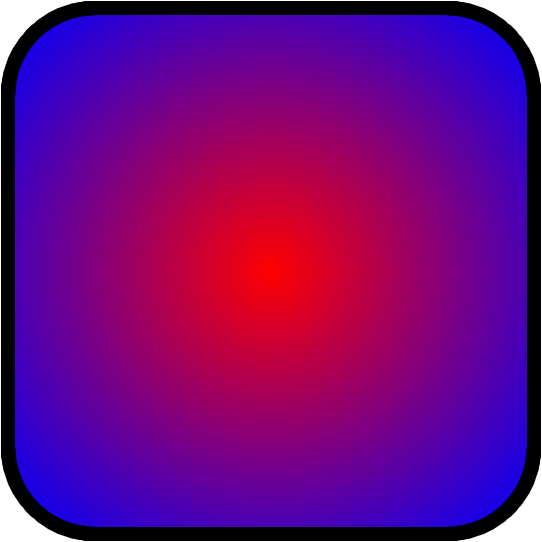
Add a stroke (outline) around the borders of shapes in an image.
Example - Outside Stroke (Default):
Example - Inside Stroke:
from pyimagecuda import Image, Fill, Effect, save

img = Image(512, 512)
c1 = (0.2, 0.8, 0.3, 1)
c2 = (0.1, 0.3, 0.8, 1)
Fill.gradient(img, c1, c2, 'horizontal')
Effect.rounded_corners(img, 80)

stroked = Effect.stroke(
    img,
    width=30,
    color=(1, 1, 1, 1),
    position='inside'
)

save(stroked, 'output.png')

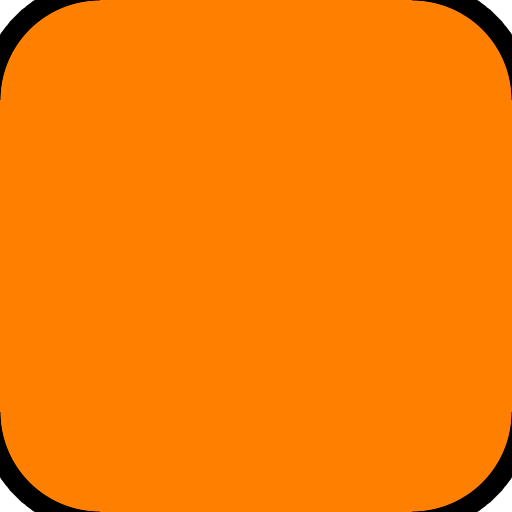
Example - No Expand Mode:
Parameters:
image(Image): Source imagewidth(int): Stroke width in pixels (1-1000, default: 2)color(tuple[float, float, float, float]): Stroke color in RGBA (default:(0.0, 0.0, 0.0, 1.0))position(Literal['outside', 'inside']): Stroke position (default: 'outside')expand(bool): If True, expand canvas to fit stroke; if False, clip to original size (default: True)dst_buffer(Image | None): Optional output buffer (default: None)distance_buffer(Image | None): Optional distance field buffer (default: None)
Returns: New image with stroke (or None if dst_buffer provided)
Position modes:
position='outside': Stroke extends outward from shape edge- With
expand=True: Canvas grows bywidth*2on each side - With
expand=False: Stroke is clipped to original canvas position='inside': Stroke extends inward into shape (expand parameter has no effect)
Technical details:
- Uniform stroke width across entire shape boundary
- Perfect sub-pixel antialiasing
- Works flawlessly with complex shapes (holes, islands, concavities)
Vignette
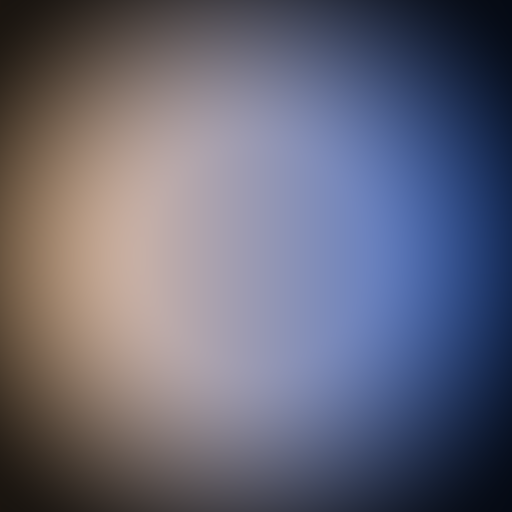
Apply a vignette effect to darken or colorize the edges of an image.
Example:
Parameters:
image(Image): Image to modify (in-place)radius(float): Vignette radius - controls where darkening begins (0.0-1.0+, default: 0.9)softness(float): Edge softness - controls the gradient falloff (0.0+, default: 1.0)color(tuple[float, float, float, float]): Vignette color in RGBA (default:(0.0, 0.0, 0.0, 1.0))
Returns: None (modifies image in-place) Note: Negative values for radius and softness are automatically clamped to 0.0.
Chroma Key
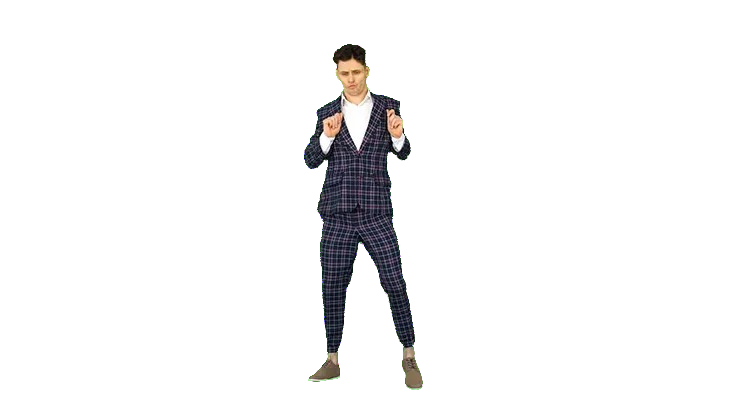
Remove a specific color from an image, commonly used for background removal and compositing.
Example:
from pyimagecuda import Image, load, Effect, save

# Load an image with a solid color background
img = load('chroma_key.jpg')

# Remove green background
Effect.chroma_key(
    img,
    key_color=(0, 1, 0),  # Green background
    threshold=0.7,
    smoothness=0.1,
    spill_suppression=0.5
)

save(img, 'chroma_key_out.png')
Parameters:
image(Image): Image to modify (in-place)key_color(tuple[float, float, float]): RGB color to remove (default:(0.0, 1.0, 0.0)- green)threshold(float): Color similarity threshold - higher values remove more similar colors (default: 0.4)smoothness(float): Edge smoothness - controls the transition between transparent and opaque areas (default: 0.1)spill_suppression(float): Reduces color spill from the key color onto remaining pixels (0.0-1.0, default: 0.5)
Returns: None (modifies image in-place)
Buffer Reuse
Reuse buffers for batch processing to avoid allocations.
Important: Buffers must have sufficient capacity for the final output dimensions. When using expand=True, the canvas grows beyond the input image size:
- Drop Shadow: Final size =
image.width + padding_left + padding_right×image.height + padding_top + padding_bottom - Where padding =
blur + max(0, abs(offset)) - Stroke (outside, expand=True): Final size =
image.width + width*2×image.height + width*2 - Stroke (inside): Final size =
image.width×image.height(no expansion)
Example - Drop Shadow:
from pyimagecuda import Image, load, Effect, save

# Pre-allocate buffers for 400×300 input images
# Shadow with blur=30, offset_x=10, offset_y=10
# Padding: left=40, right=40, top=40, bottom=40
# Final size: 480×380
dst = Image(480, 380)
shadow = Image(480, 380)
temp = Image(480, 380)

for file in files:
    img = load(file)  # 400×300
    Effect.rounded_corners(img, 30)

    Effect.drop_shadow(
        img,
        offset_x=10,
        offset_y=10,
        blur=30,
        dst_buffer=dst,
        shadow_buffer=shadow,
        temp_buffer=temp
    )

    save(dst, f"shadowed_{file}")
    img.free()

dst.free()
shadow.free()
temp.free()
Example - Stroke:
from pyimagecuda import Image, load, Effect, save

# Pre-allocate buffers for 512×512 input images
# Outside stroke with width=10 and expand=True
# Final size: 532×532 (512 + 10*2)
dst = Image(532, 532)
distance = Image(532, 532)

for file in files:
    img = load(file)  # 512×512
    Effect.rounded_corners(img, 50)

    Effect.stroke(
        img,
        width=10,
        color=(0, 0, 0, 1),
        dst_buffer=dst,
        distance_buffer=distance
    )

    save(dst, f"stroked_{file}")
    img.free()

dst.free()
distance.free()
Example - Variable-sized inputs with maximum capacity buffers:
from pyimagecuda import Image, load, Effect, save

# Allocate buffers for worst-case scenario
# Max input: 1920×1080
# Max stroke: width=50
# Max final size: 2020×1180 (1920+50*2 × 1080+50*2)
max_width = 1920 + 50 * 2
max_height = 1080 + 50 * 2

dst = Image(max_width, max_height)
distance = Image(max_width, max_height)

for file in files:
    img = load(file)  # Variable sizes up to 1920×1080

    Effect.stroke(
        img,
        width=50,
        dst_buffer=dst,
        distance_buffer=distance
    )
    # Buffers automatically adjust to needed size within capacity

    save(dst, f"stroked_{file}")
    img.free()

dst.free()
distance.free()
Simplified approach - Over-allocate:
You can also simply over-allocate the buffer size and skip the calculations entirely.
For example, if you are adding shadows or strokes to 512×512 images, you can create 1024×1024 buffers. These buffers will adapt to the appropriate size without any performance cost and without needing any complex calculations:
from pyimagecuda import Image, load, Effect, save

# Simple over-allocation (no math needed)
dst = Image(1024, 1024)
distance = Image(1024, 1024)

for file in files:
    img = load(file)  # Any size up to 512×512
    Effect.rounded_corners(img, 50)

    Effect.stroke(
        img,
        width=50,
        dst_buffer=dst,
        distance_buffer=distance
    )

    save(dst, f"stroked_{file}")
    img.free()

dst.free()
distance.free()
The previous examples showing exact size calculations are only necessary if you want to reserve the exact minimum memory required.
When using buffers, operations modify dst_buffer directly and return None instead of a new image.