Outputs
FuncToWeb automatically detects what your function returns and renders it in the UI. No configuration needed — just return the value.
Text
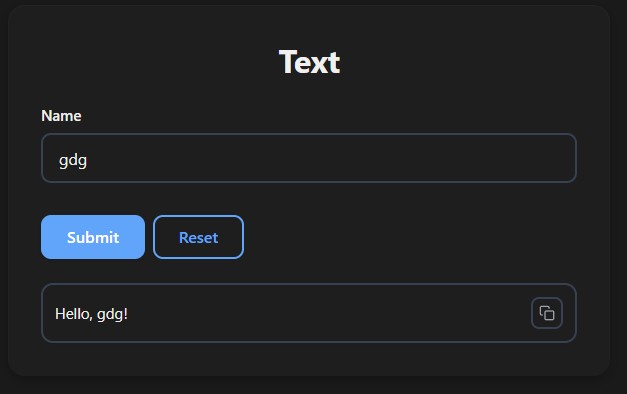
Any string or primitive is displayed as formatted text with a copy button:
from func_to_web import run

def text(name: str):
    return f"Hello, {name}!"          # str
    return 42                          # int → str(42)
    return 3.14                        # float → str(3.14)
    return None                        # → "Done"

run(text)
Images
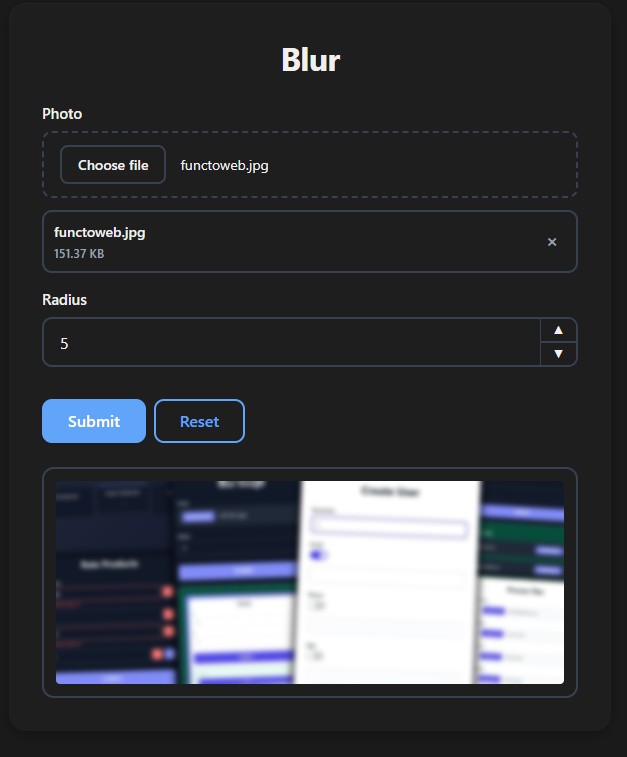
Return a PIL Image or a Matplotlib Figure — both render inline with an expand button:
from func_to_web import run
from func_to_web.types import ImageFile
from PIL import Image, ImageFilter
import matplotlib.pyplot as plt
import numpy as np

def blur(photo: ImageFile, radius: int = 5):
    img = Image.open(photo)
    return img.filter(ImageFilter.GaussianBlur(radius))

def plot(frequency: float = 1.0):
    x = np.linspace(0, 10, 1000)
    fig, ax = plt.subplots()
    ax.plot(x, np.sin(frequency * x))
    return fig

run([blur, plot])
PIL and Matplotlib are optional dependencies — install them only if needed.
Tables
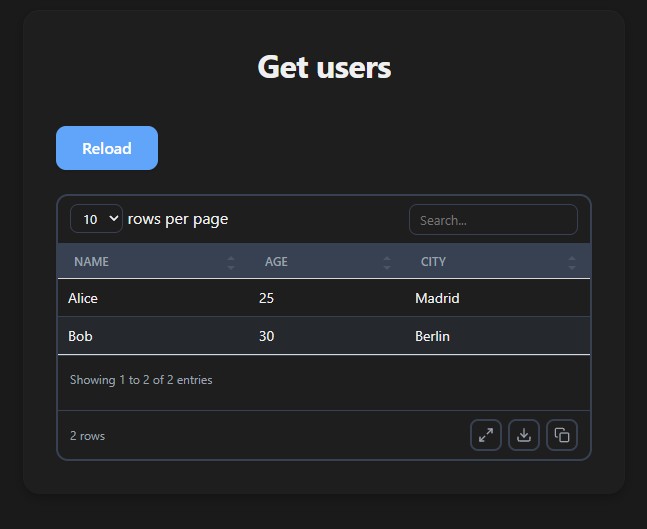
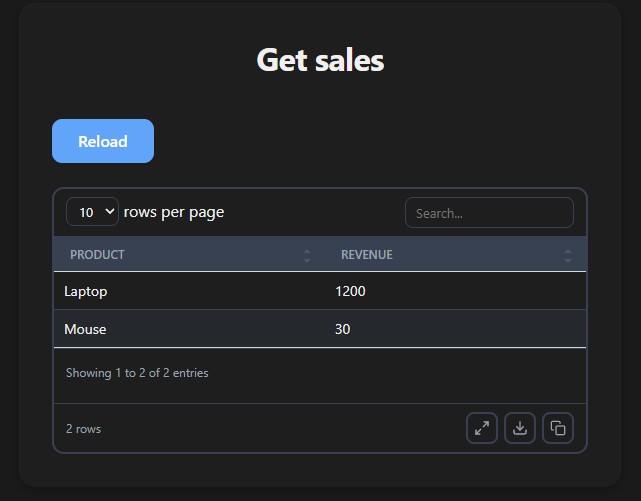
Return tabular data and get an interactive table with search, sort, pagination, CSV download, and an expand button:
from func_to_web import run
import pandas as pd

def get_users():
    return [
        {"name": "Alice", "age": 25, "city": "Madrid"},
        {"name": "Bob",   "age": 30, "city": "Berlin"},
    ]

def get_sales():
    return pd.DataFrame({
        "product": ["Laptop", "Mouse"],
        "revenue": [1200, 30],
    })

run([get_users, get_sales])
Supported formats:
| Format | Headers |
|---|---|
list[dict] | From dict keys |
list[tuple] | Auto-generated (Column 1, Column 2, ...) |
Pandas DataFrame | From column names |
Polars DataFrame | From column names |
| NumPy 2D array | Auto-generated |
File Downloads
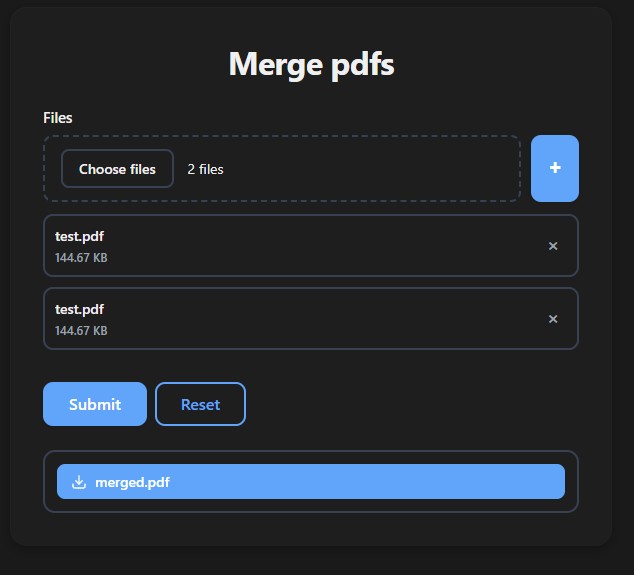
Return FileResponse to give users a download button. Files are stored temporarily and deleted after 1 hour:
from func_to_web import run
from func_to_web.types import DocumentFile, FileResponse
from io import BytesIO
from pypdf import PdfWriter

def merge_pdfs(files: list[DocumentFile]):
    writer = PdfWriter()
    for f in files:
        writer.append(f)
    buf = BytesIO()
    writer.write(buf)
    return FileResponse(data=buf.getvalue(), filename="merged.pdf")

run(merge_pdfs)
Return multiple files with a list:
def generate_reports():
    return [
        FileResponse(data=b"Report A", filename="report_a.txt"),
        FileResponse(data=b"Report B", filename="report_b.txt"),
    ]
Use path= instead of data= for large files already on disk:
Configure the returns directory and lifetime via
run(returns_dir=..., returns_lifetime=3600).
ActionTable
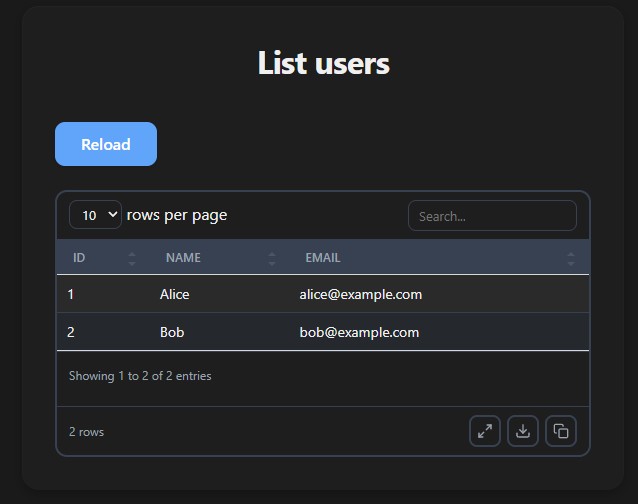
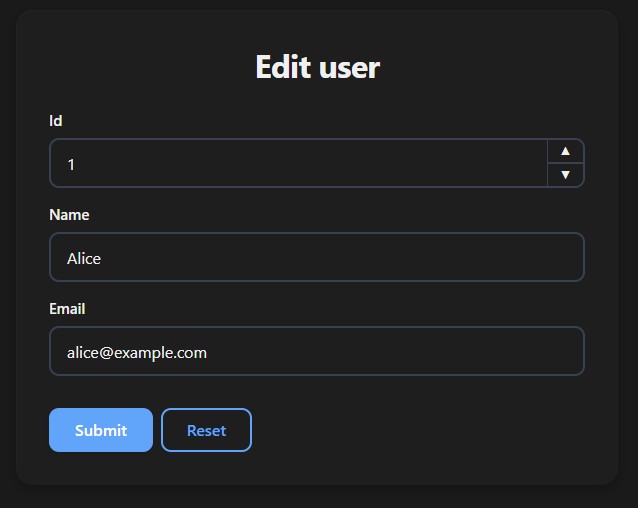
ActionTable renders a clickable table — clicking a row navigates to another function with that row's data prefilled in the form. No routing, no state, no API.
from func_to_web import run, ActionTable, HiddenFunction

def list_users():
    users = [
        {"id": 1, "name": "Alice", "email": "alice@example.com"},
        {"id": 2, "name": "Bob",   "email": "bob@example.com"},
    ]
    return ActionTable(data=users, action=edit_user)

def edit_user(id: int, name: str, email: str):
    return f"Updated user {id}: {name}"

run([list_users, HiddenFunction(edit_user)])
Column names are matched to the destination function's parameter names. Matching columns are prefilled — non-matching columns are shown in the table but ignored during navigation.
Data Sources
data accepts anything iterable — static lists, callables, SQLAlchemy queries, DataFrames:
# Static list of dicts
ActionTable(data=my_list, action=edit_user)

# Callable — called at render time, always fresh
ActionTable(data=get_users, action=edit_user)

# Lambda for inline queries
ActionTable(data=lambda: session.query(User).all(), action=edit_user)

# Any iterable (SQLAlchemy, Polars, Pandas, TinyDB...)
ActionTable(data=lambda: db.all(), action=edit_user)
When data is a callable, it's called every time the table is rendered — so the data is always up to date without any extra logic.
Custom Headers
When data is a list[dict], headers are auto-derived from the dict keys. For list[list], you must provide headers explicitly:
rows = [
    [1, "Alice", "alice@example.com"],
    [2, "Bob",   "bob@example.com"],
]

def list_users_headers():
    return ActionTable(
        data=rows,
        action=edit_user,
        headers=["id", "name", "email"],
    )
Header names are what get matched to the destination function's parameters — so they must match exactly for prefill to work.
How Navigation Works
Clicking a row navigates to the destination function's URL with the row data as query parameters:
This is the same URL prefill mechanism available to any external app — see URL Prefill.
⚠️
ActionTableis experimental. Works well with simple types (str,int,float). Files and complex types are not supported via row navigation.
Multiple Outputs
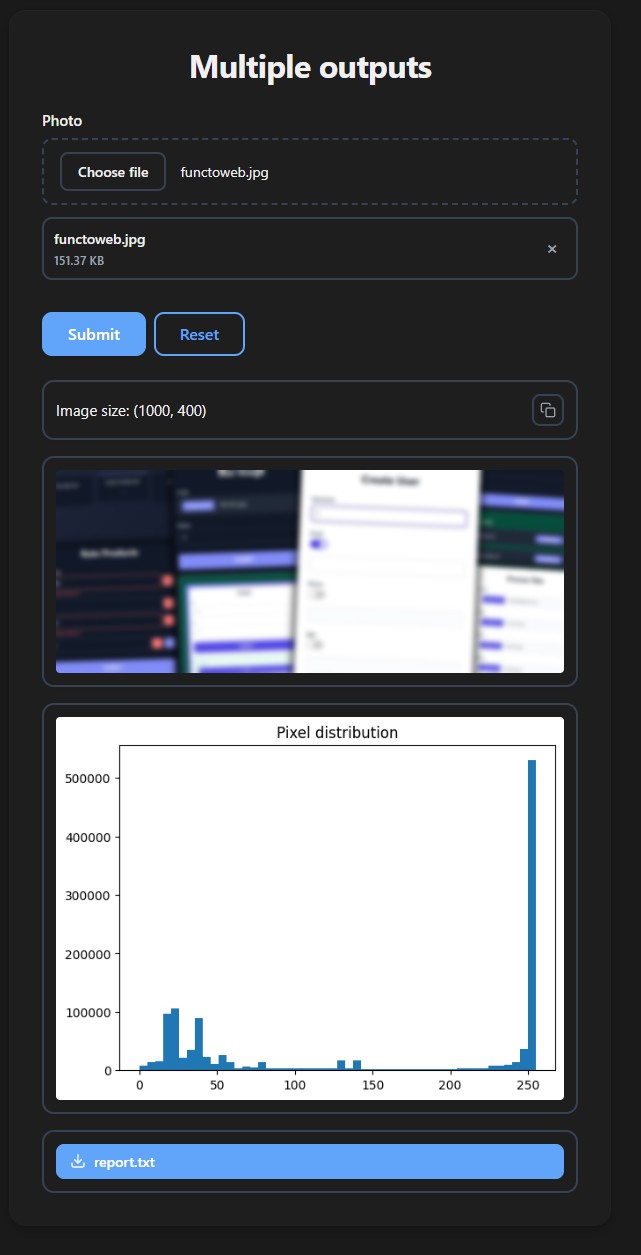
Return a tuple or list to display several outputs at once — combine any types freely:
def multiple_outputs(photo: ImageFile):
    from PIL import Image, ImageFilter
    import matplotlib.pyplot as plt
    img = Image.open(photo)
    blurred = img.filter(ImageFilter.GaussianBlur(5))
    fig, ax = plt.subplots()
    ax.hist([p for px in img.getdata() for p in px], bins=50)
    ax.set_title("Pixel distribution")
    report = FileResponse(
        data=f"Size: {img.size}".encode(),
        filename="report.txt"
    )
    return (f"Image size: {img.size}", blurred, fig, report)
Each item is rendered in its own block in order. None items are skipped.
Print Output
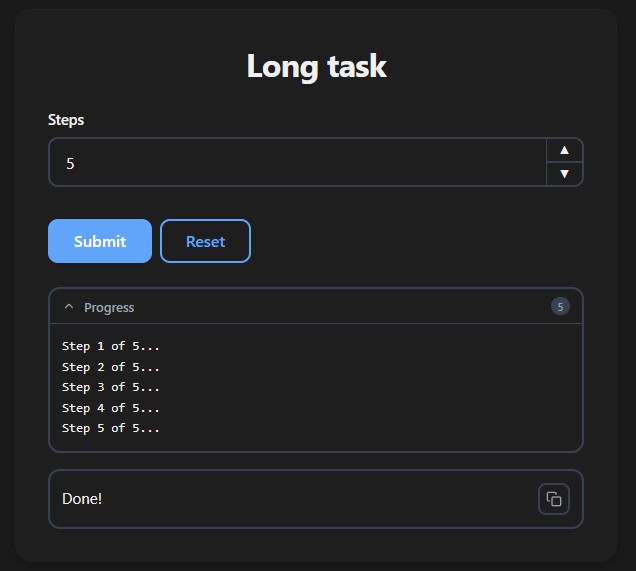
print() calls inside your function are streamed to the browser in real time as the function runs — useful for progress updates on long-running tasks:
from func_to_web import run
import time

def long_task(steps: int = 5):
    for i in range(steps):
        print(f"Step {i + 1} of {steps}...")
        time.sleep(1)
    return "Done!"

run(long_task)
Disable streaming if you don't need it:
Errors
If your function raises an exception, the error message is displayed in the UI in a red error block: